

If your Allowed Headers are already set to
*, you can skip this note. If not and you face issues integrating Vikat with Gemini CLI, try switching to * or adding the specific headers required by your client. By default, Vikat whitelists: Content-Type, Authorization, X-Requested-With, X-Stainless-Timeout, and X-Api-Key.To install Gemini CLI
Configuring Gemini CLI to work with Vikat
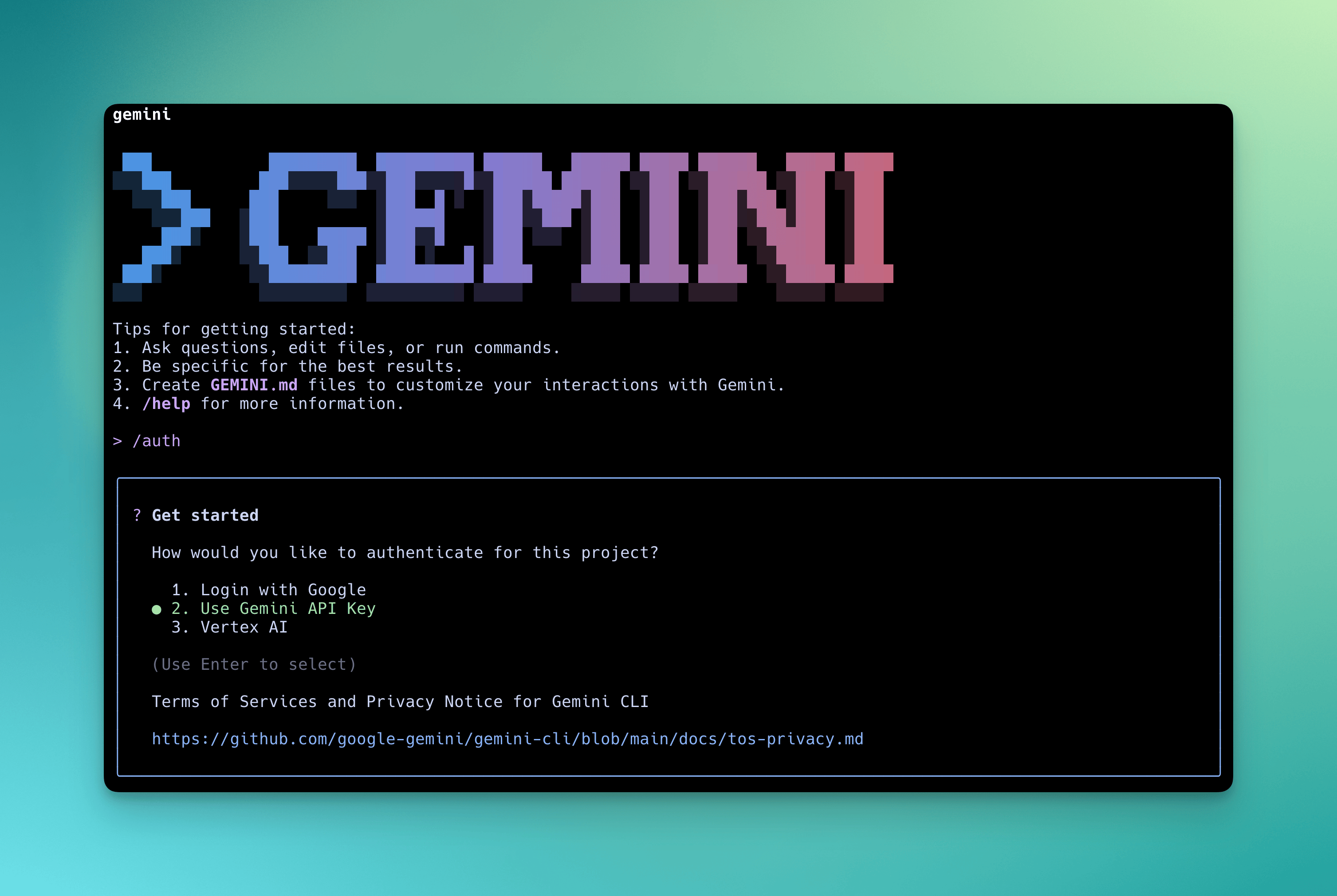
Gemini CLI supports multiple authentication methods. Choose the one that matches your account type.Google account (OAuth)
Log in with your Google account for free-tier access (60 requests/min, 1,000 requests/day).-
Set the Vikat base URL
-
Run Gemini CLI and sign in
Select Login with Google and authenticate via your browser. All traffic automatically routes through Vikat.
API key based usage
For users with a Gemini API key (obtain one from Google AI Studio):-
Configure environment variables
-
Run Gemini CLI
Select Use Gemini API Key in the CLI prompt for authentication.
Google Cloud / Vertex AI
For enterprise users with Vertex AI access:Model Configuration
Use the-m flag to start Gemini CLI with a specific model:
Using Non-Google Models with Gemini CLI
Vikat automatically translates GenAI API requests to other providers, so you can use Gemini CLI with models from OpenAI, Anthropic, Mistral, and more. Use theprovider/model-name format to specify any Vikat-configured model.
Supported Providers
Vikat supports the following providers with theprovider/model-name format:
openai, azure, gemini, vertex, bedrock, mistral, groq, cerebras, deepseek, cohere, perplexity, xai, ollama, openrouter, huggingface, nebius, parasail, replicate, vllm, sgl